Updated April 8, 2025
offers 06+ distinctive demo layouts, and we consistently introduce more layouts. You don’t have any designs and knowledge to build your website? You need not worry. Import any prebuilt demo you like from the versatile collection .
Login to your WordPress dashboard.
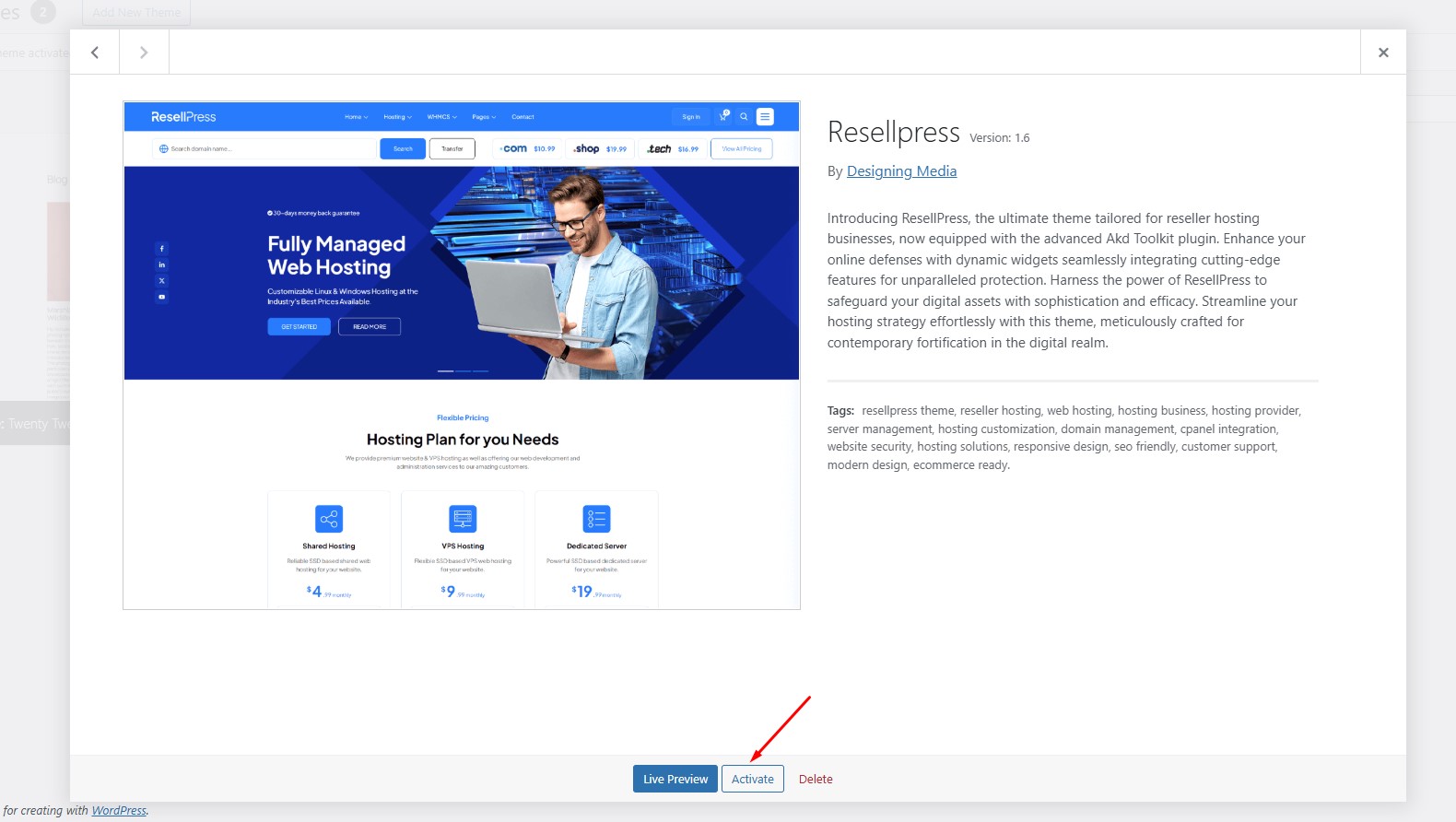
Navigate to Appearance > Themes from the left panel of your dashboard and activate the Hostiko Theme.
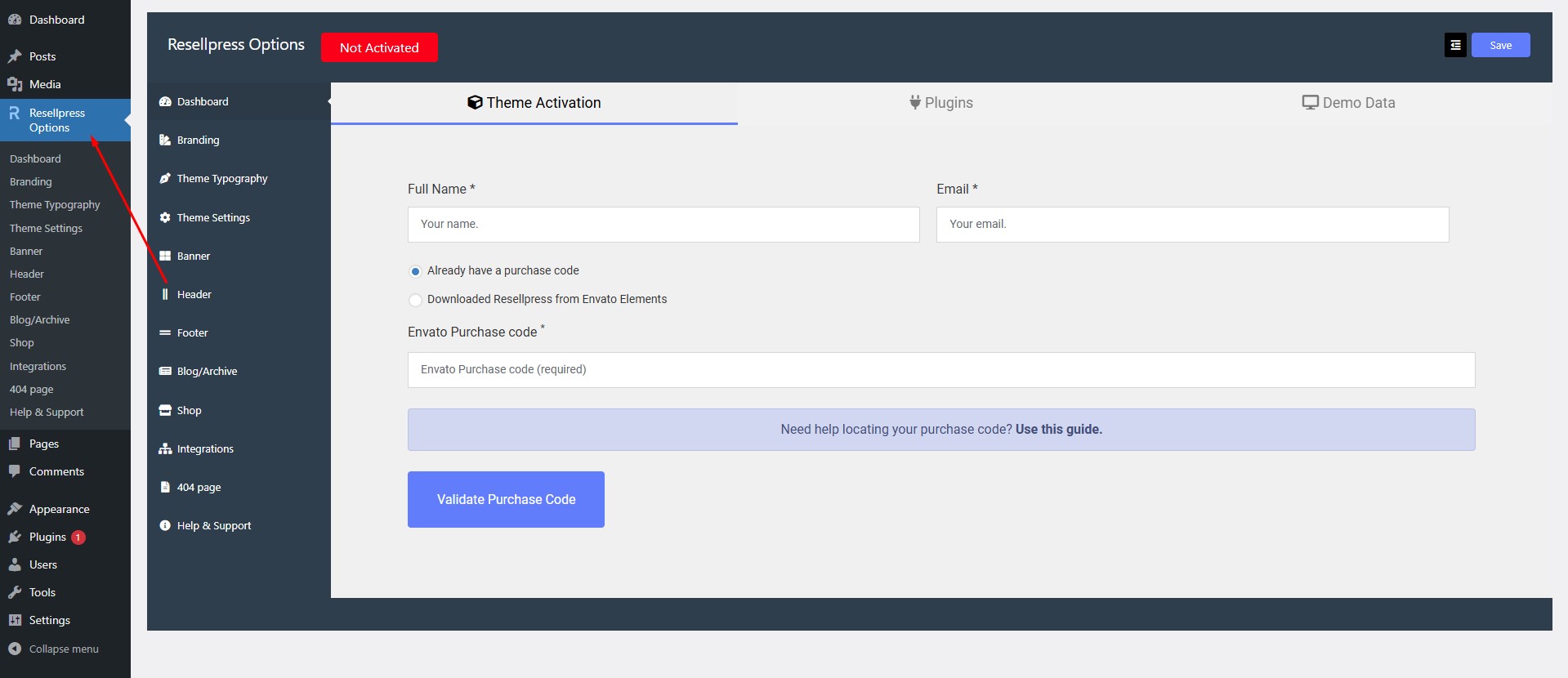
You will be redirected to Options Screen, which can be found on the left sidebar. Please enter your full name, email, and purchase code.
Click on install child theme once the child theme gets installed.
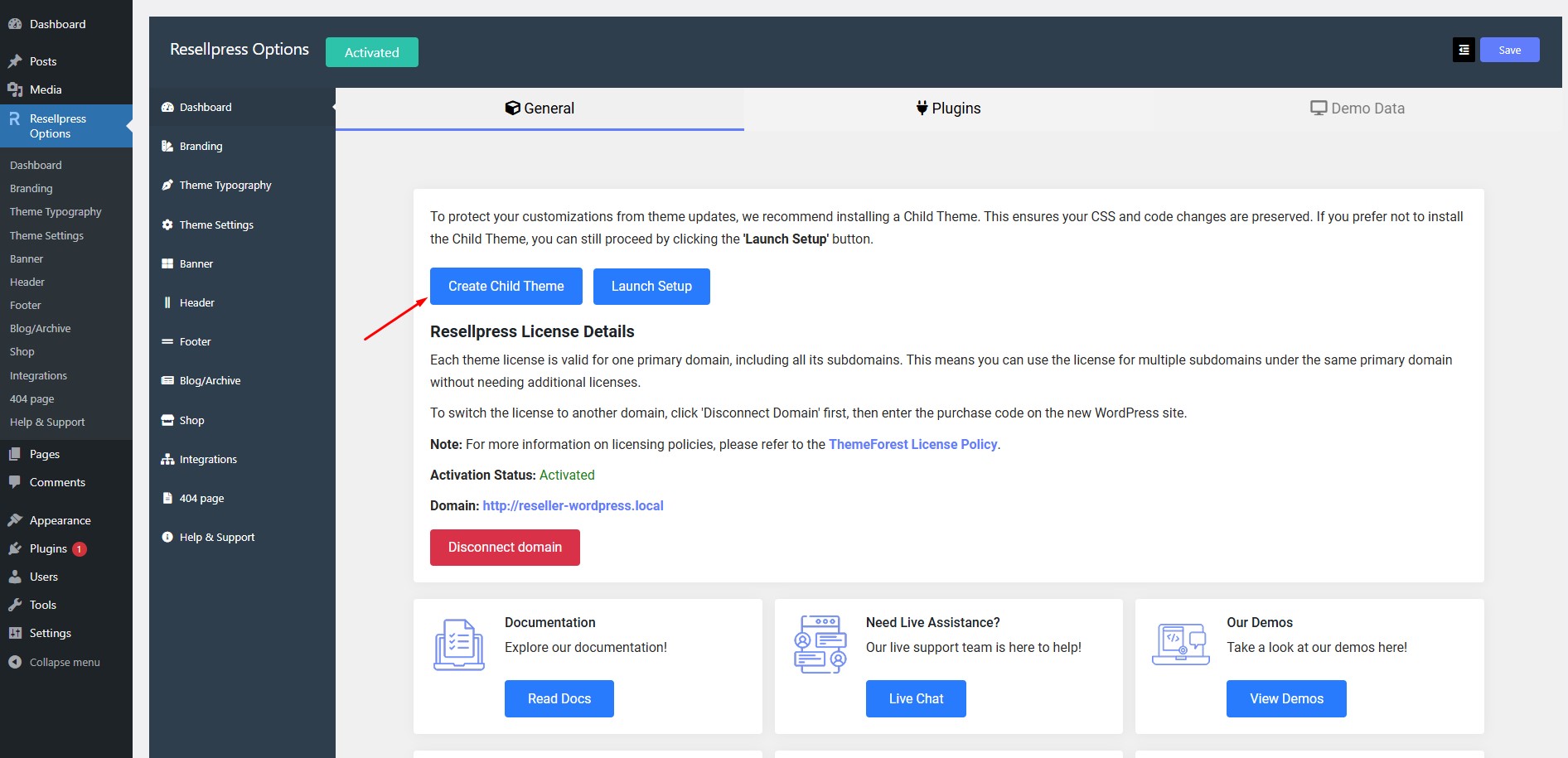
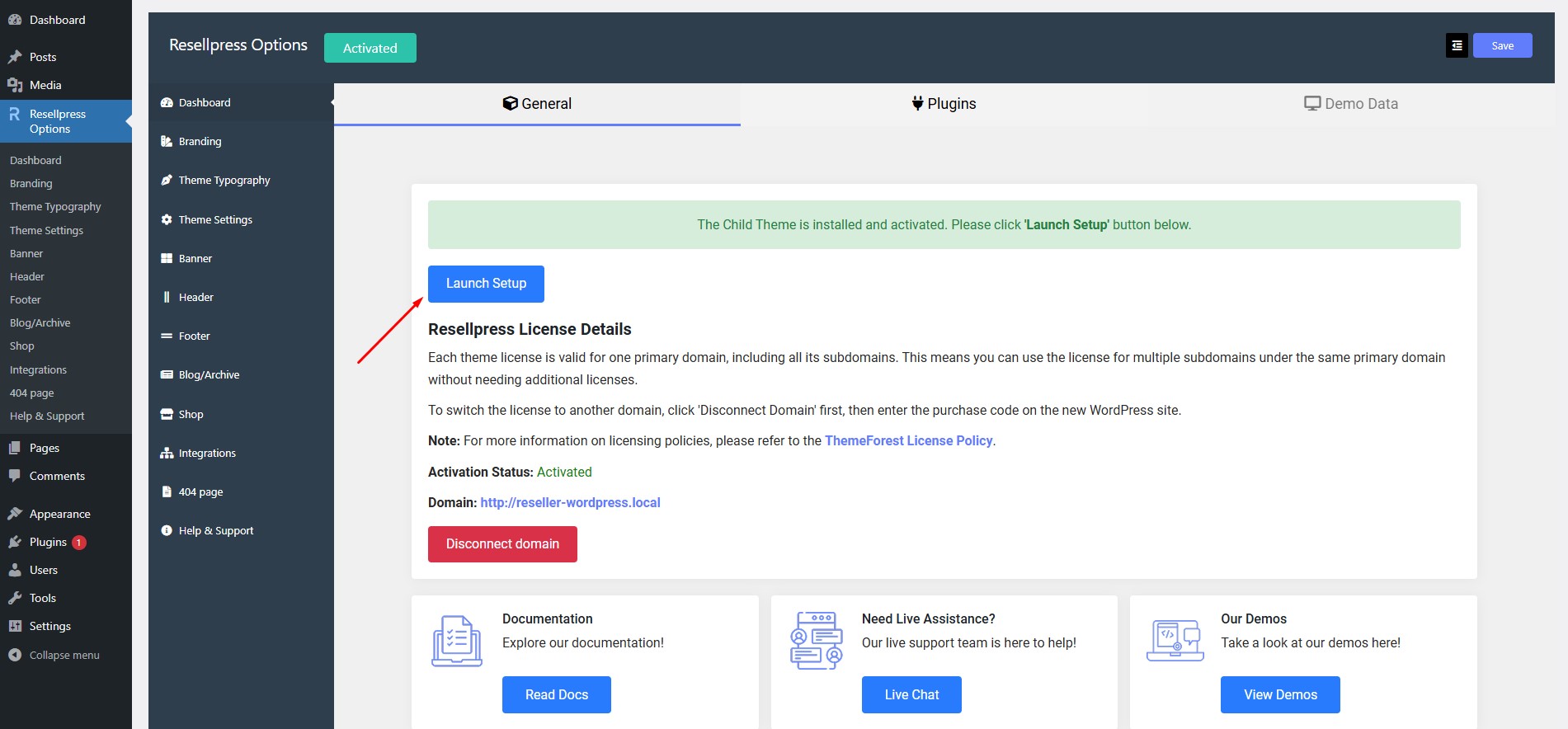
Click on Launch Setup button that will take you to plugin screen.
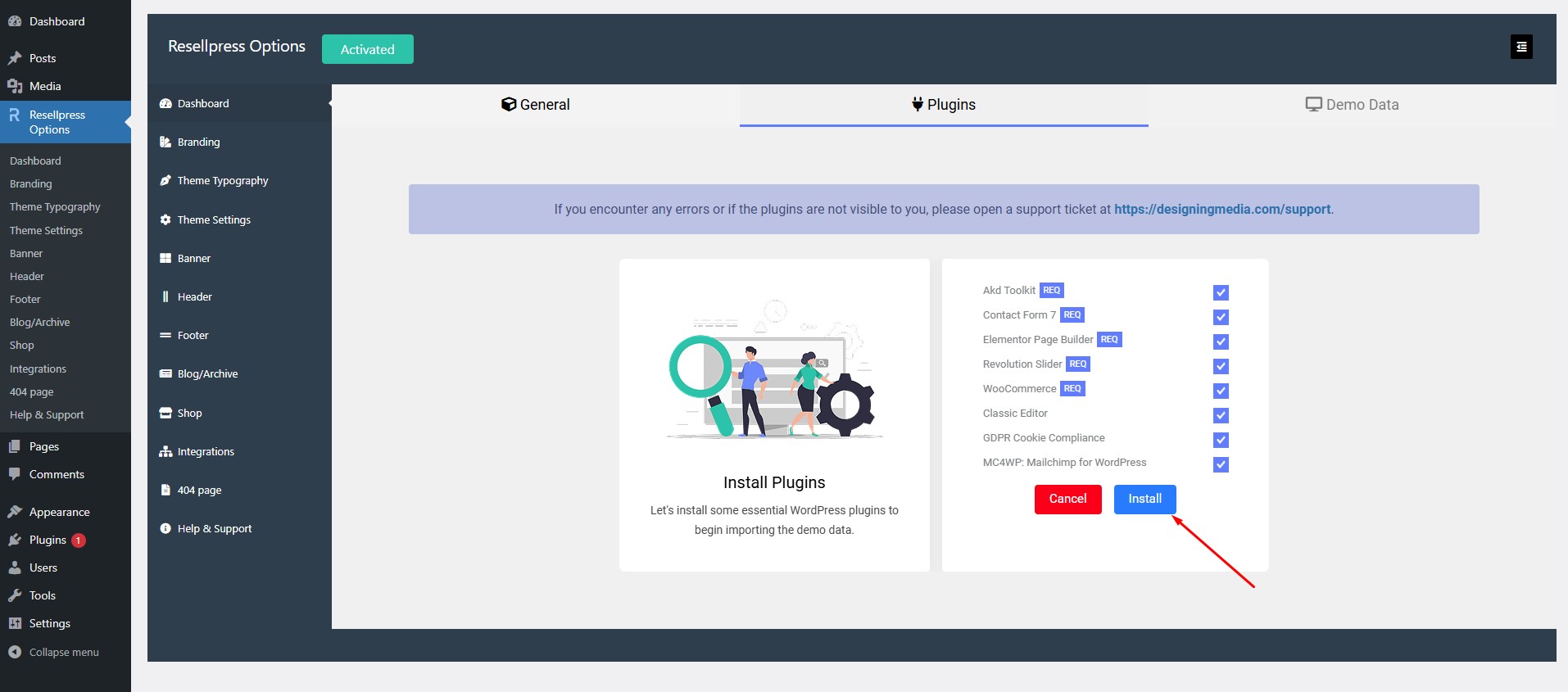
Click on install button to install all the plugins that are required for theme to work properly. It will take some time.
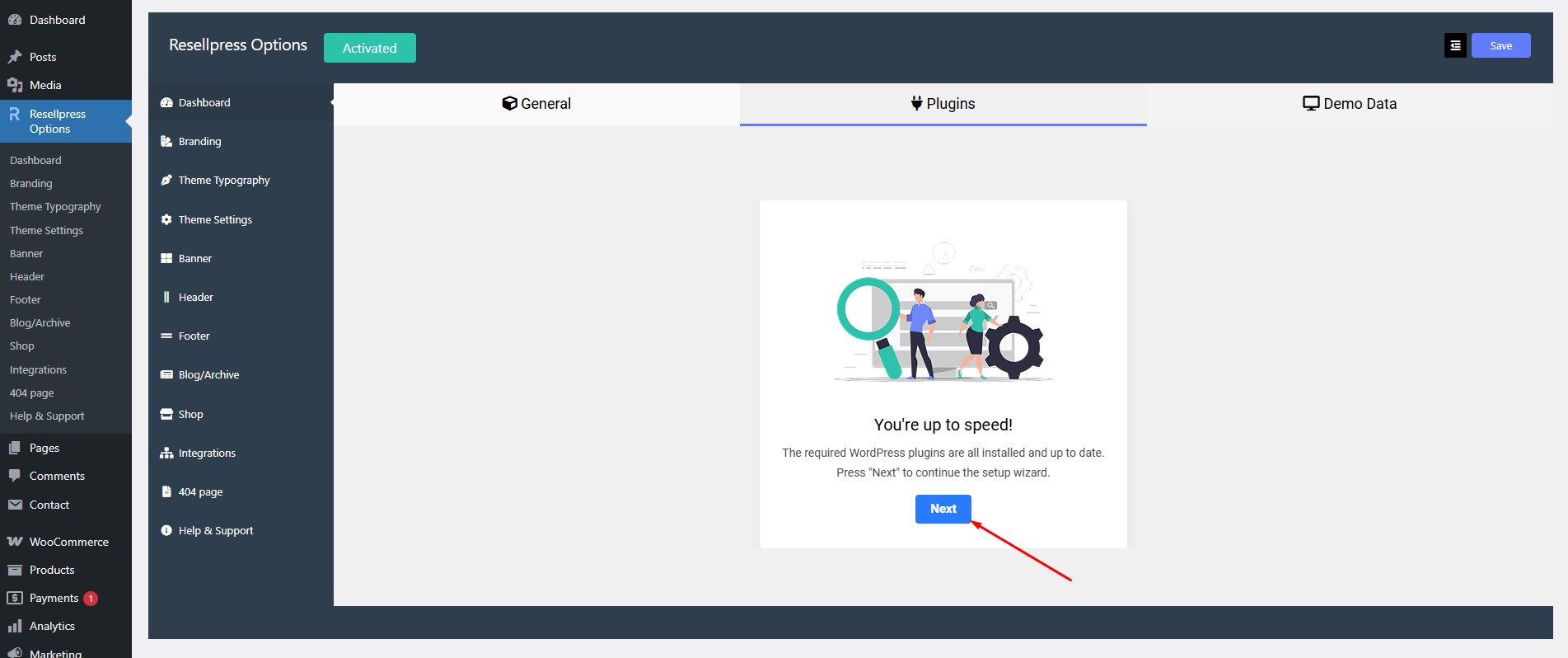
Once all the plugins install successfully new screen will appear click on next button that will take you to import demo screen.
Hover over any demo layout you want to import.
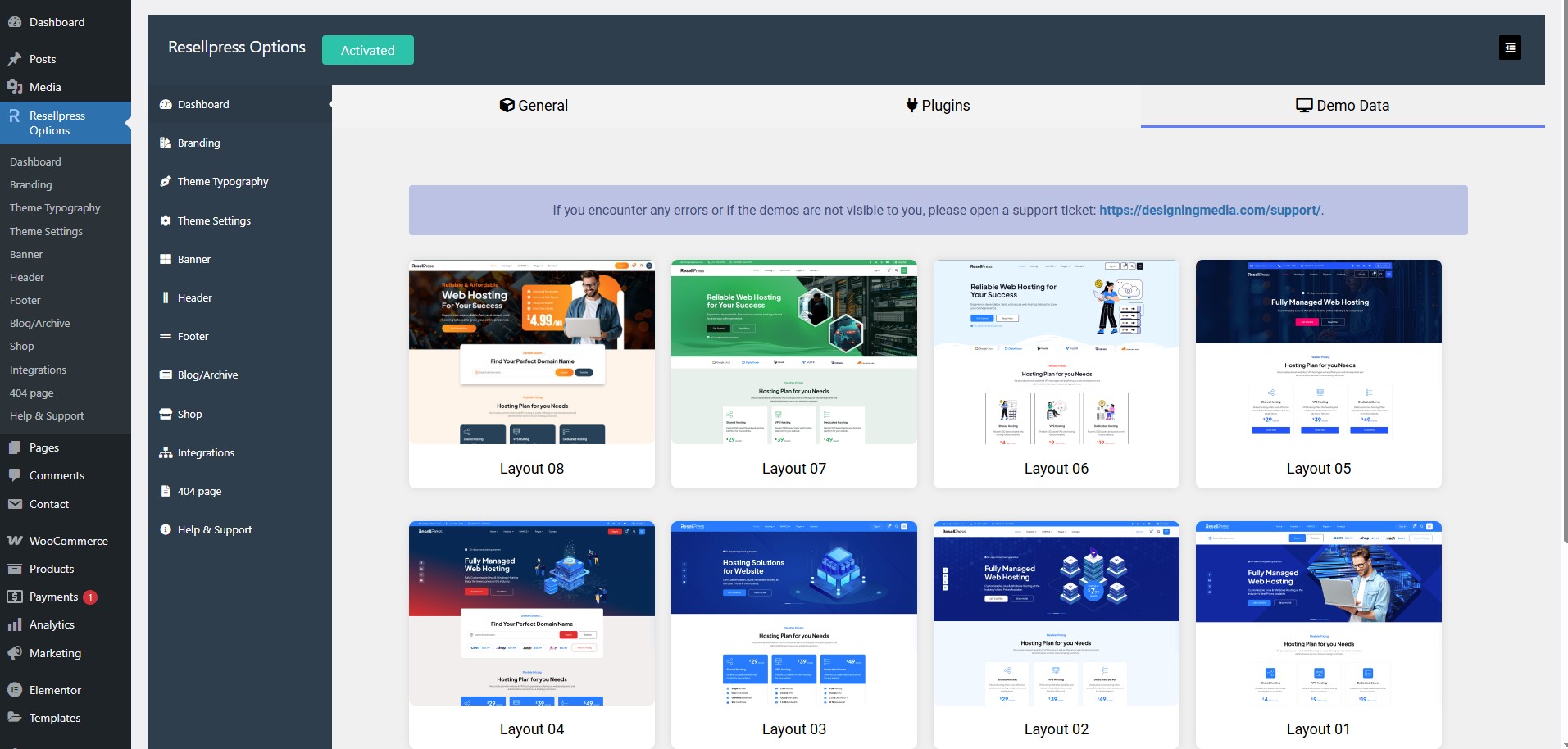
Like if you want to install the demo layout 02 hover over the layout 02 and click on install Demo Button.
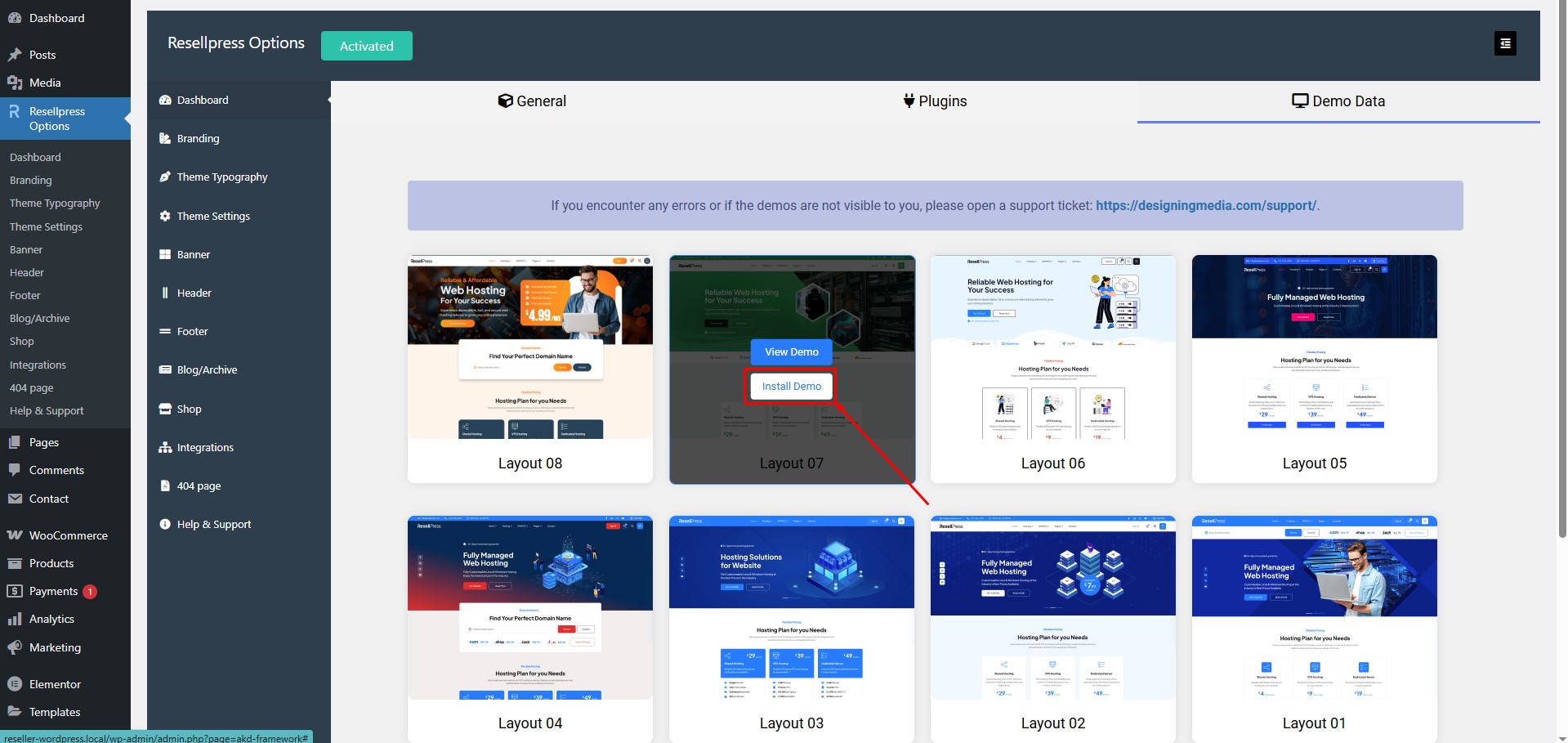
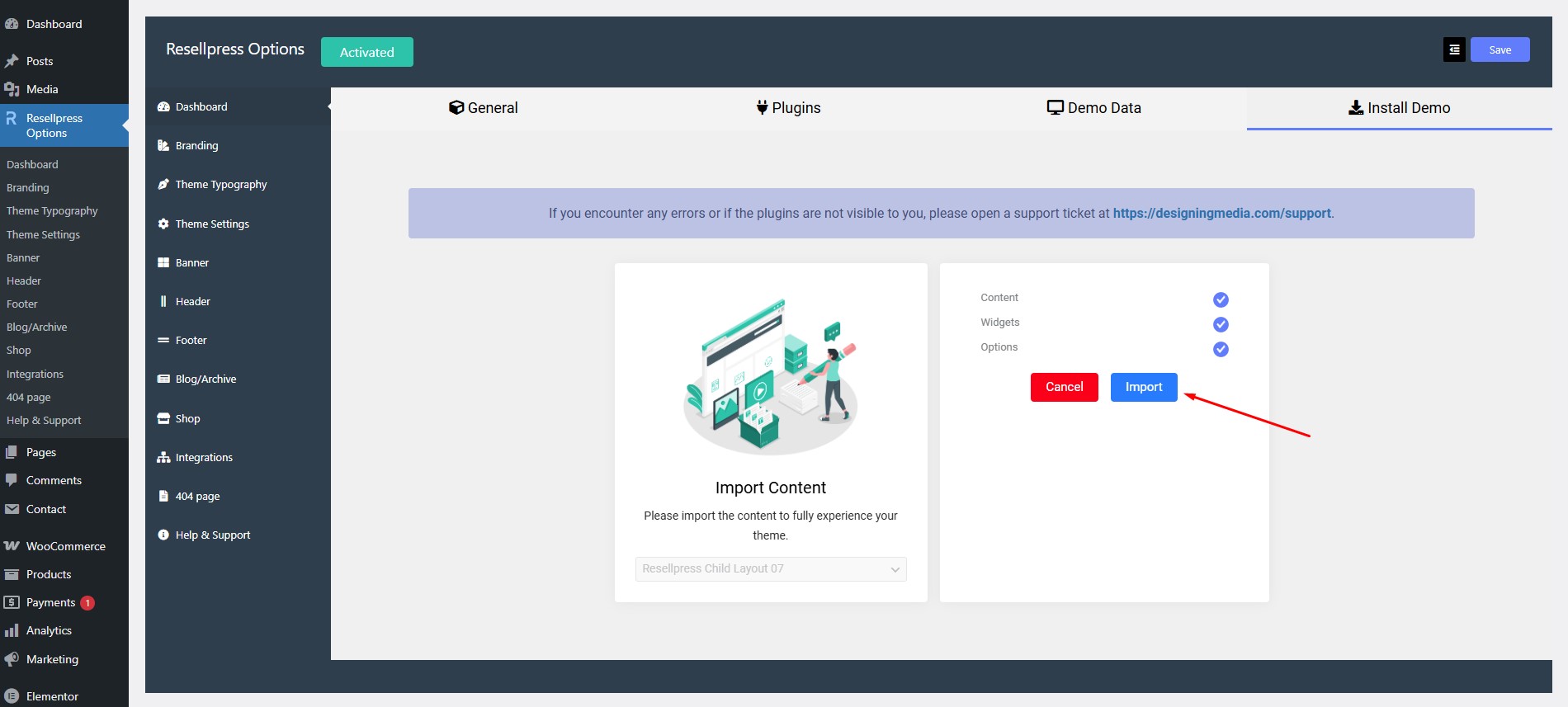
Install demo button will redirect you to the next screen click on Import button and wait for some time until it imports the demo data.